How to Configure Automatic Scanning to Specific Emails
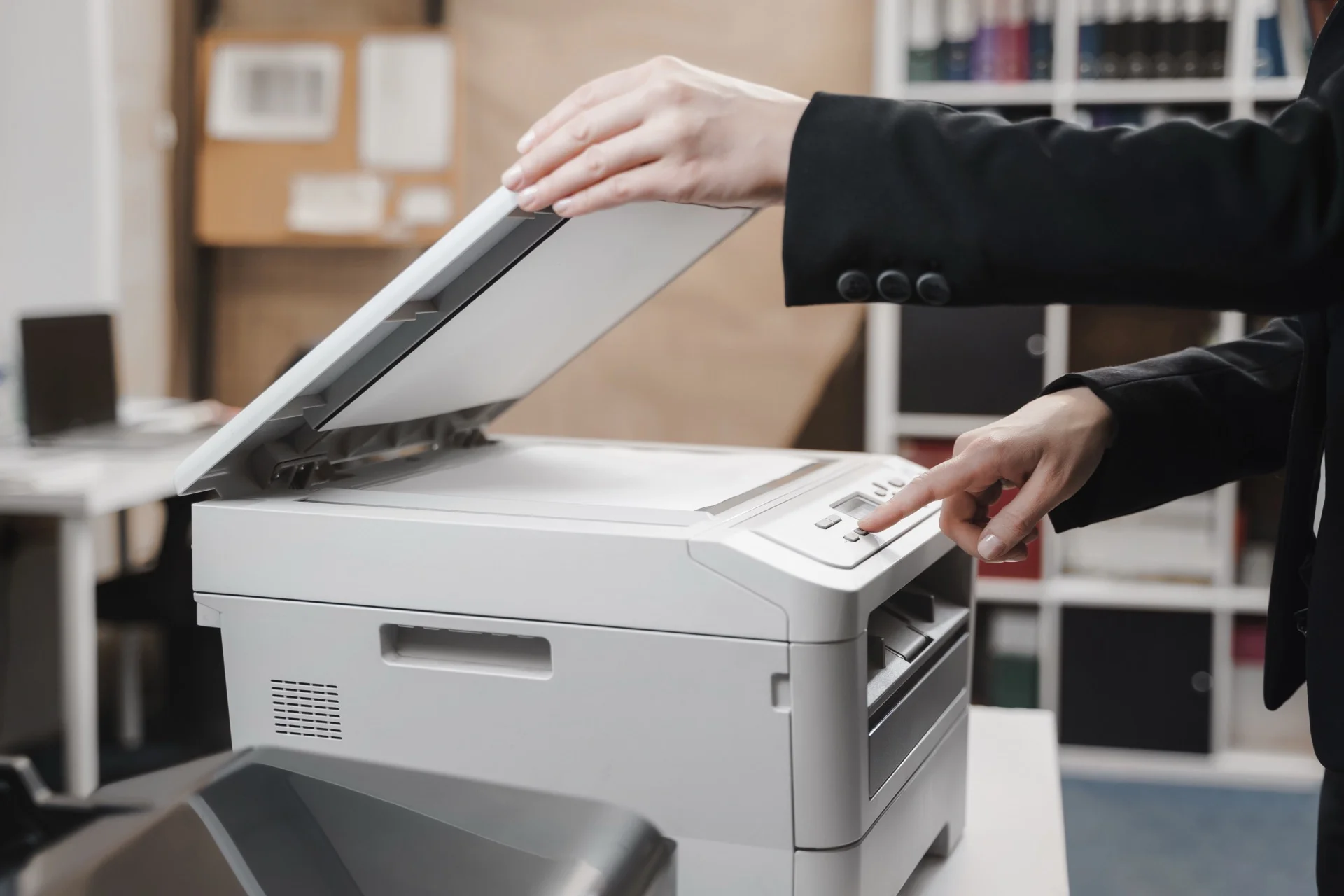
Automatic scan-to-email streamlines document workflows and saves time. Instead of scanning, saving, opening email, and attaching, you can send documents with a single touch. Here’s how to configure this feature on your professional copier.
Why scan-to-email matters
Time savings
Traditional workflow:
- Scan document to computer (30 seconds)
- Navigate to file (15 seconds)
- Open email client (10 seconds)
- Compose email (30 seconds)
- Attach file (15 seconds)
- Send (5 seconds) Total: ~2 minutes per document
Scan-to-email:
- Place document
- Press shortcut button
- Done Total: ~15 seconds
Business benefits
- Faster document distribution
- Immediate confirmation (email sent)
- Reduced steps = fewer errors
- Works for everyone (no computer needed)
Prerequisites
What you need
- Network-connected multifunction copier
- SMTP server access (for sending email)
- Email addresses to configure
- Admin access to copier
SMTP information required
| Setting | What it is | Example |
|---|---|---|
| SMTP server | Mail server address | smtp.yourcompany.com |
| Port | Communication port | 25, 465, or 587 |
| Authentication | Login required? | Usually yes |
| Username | Account for sending | copier@yourcompany.com |
| Password | Account password | ******** |
| Encryption | SSL/TLS | Usually required |
Getting SMTP details
From IT department: Best option—they know your mail server
Common providers:
| Provider | Server | Port | Encryption |
|---|---|---|---|
| Microsoft 365 | smtp.office365.com | 587 | STARTTLS |
| Google Workspace | smtp.gmail.com | 587 | TLS |
| Generic | smtp.yourdomain.com | 25/587 | Varies |
Configuration steps
Step 1: Access admin settings
On the copier:
- Press Settings or Menu
- Navigate to Administrator Settings or System Settings
- Enter admin password (default varies by brand—check manual)
Via web interface:
- Open browser
- Enter copier IP address
- Log in as administrator
Step 2: Configure SMTP
Navigate to email settings:
- Canon: Settings → Function Settings → E-Mail/I-Fax Settings
- Ricoh: System Settings → Send (Email/Folder) → SMTP Server
- Konica Minolta: Network → Email Settings → SMTP
- HP: Network → Email Settings
Enter SMTP details:
- Server address: smtp.yourserver.com
- Port: 587 (most common)
- Enable authentication: Yes
- Username: your-sender@company.com
- Password: (the password)
- Encryption: TLS or SSL
- Sender address: copier@company.com
Test the configuration (most machines have a test button)
Step 3: Create address book entries
For frequently used addresses:
- Go to Address Book or Contacts
- Click Add New
- Enter:
- Name: “John Smith” or “Finance Team”
- Email: john.smith@company.com
- Save
- Repeat for all common destinations
Step 4: Create one-touch shortcuts
For even faster scanning:
- Go to Shortcuts or Quick Settings
- Create new shortcut
- Configure:
- Name: “Scan to Finance”
- Type: Scan to Email
- Destination: finance@company.com
- Format: PDF
- Resolution: 300 DPI
- Colour: Auto or B&W
- Save
Now users press one button to scan directly to Finance.
Advanced configurations
Scan to yourself
Dynamic “me” address: Some copiers support scanning to the logged-in user’s email automatically—requires user authentication setup.
Personal shortcuts: Each user creates their own shortcut with their email address.
Group distribution
Send scans to multiple recipients:
- Create a group in address book
- Add multiple email addresses
- Create shortcut pointing to group
Or use distribution lists (emails like team@company.com).
Automatic subject and body
Configure default email text:
- Subject: “Scanned document from [device name]” or “Document from [user]”
- Body: “Please find attached document scanned on [date] at [time]”
Most copiers support variables like date, time, user, pages.
File naming
Configure how attached files are named:
Options typically include:
- Date-time: 20240415_143022.pdf
- User-date: JSmith_20240415.pdf
- Custom prefix: Invoice_20240415.pdf
- Counter: Scan_001.pdf
File format options
| Format | Best for |
|---|---|
| Most documents | |
| PDF/A | Archival, legal |
| Searchable PDF | Documents needing OCR |
| TIFF | High quality images |
| JPEG | Photos |
Brand-specific guides
Canon
- Press Settings → Preferences → Network
- Select E-Mail/I-Fax Settings
- Configure SMTP in E-Mail Send Settings
- Test with Check SMTP Connection
Ricoh
- Press User Tools → System Settings
- Select File Transfer → SMTP Server
- Enter server details
- Use Connection Test
Konica Minolta
- Access Utility → Administrator Settings
- Go to Network Settings → E-mail Settings
- Configure SMTP TX
- Test configuration
HP
- Open web interface (EWS)
- Go to Networking → TCP/IP Settings
- Select Network Identification → SMTP
- Configure and test
Troubleshooting
”Email failed to send”
Check:
- SMTP server address correct
- Port number correct
- Authentication credentials valid
- Encryption type matches server
Solution: Verify all settings with IT department
”Authentication error”
Causes:
- Wrong username/password
- Account requires app-specific password
- Two-factor authentication blocking
Solutions:
- Reset password
- Create app password (Microsoft 365, Google)
- Use service account
”Connection timeout”
Causes:
- Wrong port
- Firewall blocking
- Server unreachable
Solutions:
- Try different port (25, 465, 587)
- Check firewall rules
- Verify server is online
”Recipient not found”
Check:
- Email address spelled correctly
- No extra spaces
- Valid email format
Email going to spam
Solutions:
- Set up SPF records for copier
- Use authenticated SMTP
- Avoid spam-like subjects
- Ask recipients to whitelist
Security considerations
Protect credentials
- Use service account (not personal email)
- Change password regularly
- Limit admin access
Encrypt transmissions
- Use TLS/SSL for SMTP
- Avoid port 25 (unencrypted)
Audit trail
- Enable logging
- Track who scans what
- Review periodically
Address book control
- Limit who can add addresses
- Restrict external emails if needed
- Regular review and cleanup
User training
What users need to know
- How to place documents (ADF vs platen)
- Which shortcut to use
- How to select recipients (if not using shortcuts)
- What format options mean
- Where to get help
Create quick reference
Post near copier:
SCAN TO EMAIL
1. Place document face-up in feeder
2. Press [Scan to Email] button
3. Enter recipient OR select from contacts
4. Press [Start]
5. Document sent!
Summary
Setting up scan-to-email involves:
- Gather SMTP details from IT
- Configure SMTP on copier
- Create address book entries
- Set up shortcuts for common destinations
- Train users on the process
Once configured, scanning to email becomes a one-touch operation that saves significant time.
Need a copier with advanced scanning features?
Get free personalised quotes from qualified suppliers in Belgium. Response within 24h, no obligation.