Create Automated Workflows with Your Photocopier: Scanning, Filing, Sending
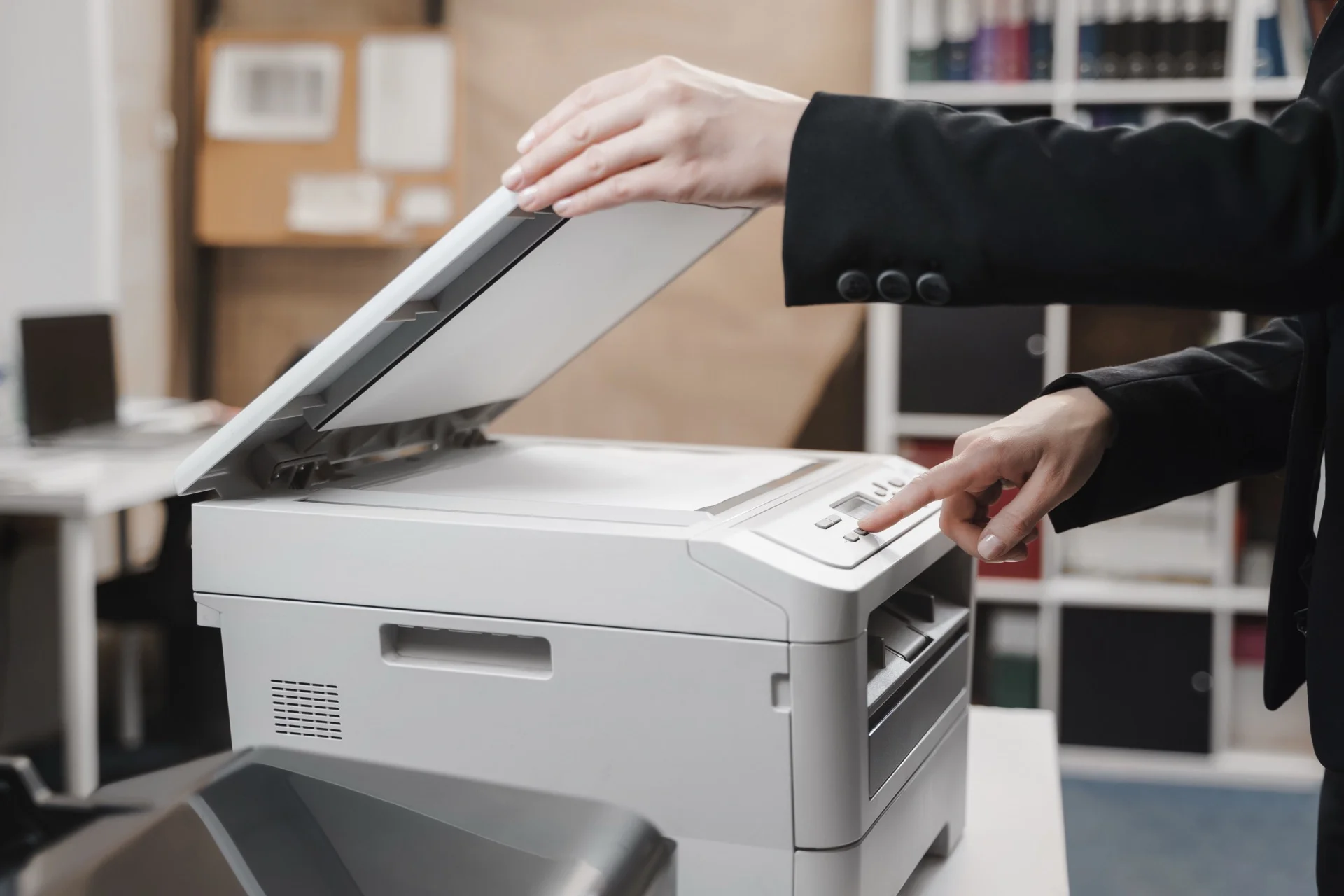
Modern multifunction photocopiers are far more than simple copying machines. They’re powerful document management hubs capable of automating workflows that previously required manual intervention at every step. By properly configuring your photocopier’s automation features, you can dramatically improve efficiency and reduce errors in document handling.
Understanding Document Workflow Automation
Workflow automation transforms repetitive manual tasks into streamlined, automatic processes. With a modern photocopier, you can create workflows that:
- Scan documents directly to the right destination
- Convert paper to searchable digital files
- Route documents to appropriate folders or recipients
- Notify relevant parties when documents arrive
- Archive files according to your retention policies
Essential Automated Workflow Types
Scan-to-Folder Workflows
The most basic automation sends scanned documents directly to network folders:
Setup process:
- Define network folder destinations
- Create one-touch buttons on the photocopier
- Configure file naming conventions
- Set quality and format parameters
Example workflow: Invoice Processing
- Scan invoices at the photocopier
- Documents automatically go to “Incoming Invoices” folder
- File names include date and sequential number
- Accounts team receives notification
Scan-to-Email Workflows
Send documents directly from the photocopier to email recipients:
Key features:
- One-touch recipient selection
- Address book integration
- Automatic subject line and message
- Multiple recipient support
- Confirmation notifications
Example workflow: Contract Distribution
- Scan signed contract
- Select “Send to Client” workflow
- Document automatically emails to client
- Copy saved to contracts folder
- Confirmation sent to sales team
Scan-to-Cloud Workflows
Integrate with cloud storage services for modern document management:
Supported platforms typically include:
- Google Drive
- Microsoft OneDrive/SharePoint
- Dropbox Business
- Box
Benefits:
- Access documents from anywhere
- Automatic backup
- Collaboration features
- Integration with other cloud tools
OCR and Searchable PDFs
Optical Character Recognition transforms scanned images into searchable, editable text:
Capabilities:
- Create searchable PDF files
- Extract text for data entry
- Enable full-text search in archives
- Convert to editable formats (Word, Excel)
Example workflow: Receipt Archiving
- Scan receipts
- OCR extracts date, amount, vendor
- File renamed with extracted data
- Searchable archive created
Setting Up Workflow Automation
Step 1: Assess Your Needs
Before configuring workflows, analyse your current processes:
- What documents do you handle regularly?
- Where do they need to go?
- Who needs access?
- What approvals or routing are required?
Step 2: Plan Your Folder Structure
Create a logical filing system:
Documents/
├── Incoming/
│   ├── Invoices/
│   ├── Contracts/
│   └── Correspondence/
├── Processing/
└── Archive/
    ├── 2024/
    └── 2025/
Step 3: Configure the Photocopier
Work with your IT team or provider to:
- Connect to network shares
- Set up email server integration
- Configure cloud connections
- Create user accounts and permissions
Step 4: Create Workflow Buttons
Design intuitive one-touch options:
- Clear, descriptive names
- Logical grouping
- Colour coding if available
- Test thoroughly before deployment
Step 5: Train Users
Ensure everyone knows:
- Available workflows
- When to use each option
- How to select parameters
- What happens after scanning
Advanced Automation Features
Conditional Routing
Some systems offer intelligent routing based on document content:
- Route invoices over €1000 to manager
- Send urgent documents to mobile devices
- Direct specific document types to designated folders
Barcode and QR Code Reading
Use printed codes for automatic processing:
- Attach barcode cover sheets to documents
- Photocopier reads code and routes accordingly
- Eliminates manual workflow selection
- Reduces errors in high-volume processing
Integration with Business Systems
Connect workflows to other software:
- ERP systems – Auto-attach invoices to records
- CRM software – File correspondence with clients
- Document management – Apply metadata automatically
- Accounting software – Import scanned documents
Best Practices for Workflow Design
Keep It Simple
- Start with essential workflows
- Add complexity gradually
- Test thoroughly before rollout
- Gather user feedback
Standardise Naming Conventions
Create consistent file names:
- Include date in sortable format (YYYY-MM-DD)
- Use descriptive prefixes
- Avoid special characters
- Keep names reasonably short
Document Your Workflows
Maintain records of:
- Workflow configurations
- Folder destinations
- Naming conventions
- User permissions
Regular Review and Optimisation
Schedule periodic reviews:
- Are workflows being used?
- Are they meeting needs?
- What improvements are requested?
- Are there new requirements?
Security Considerations
Access Control
- Limit workflow access appropriately
- Use PIN codes for sensitive workflows
- Audit usage regularly
- Remove obsolete permissions
Data Protection
- Encrypt transmissions
- Secure network folders
- Comply with GDPR requirements
- Clear temporary files
Troubleshooting Common Issues
Documents Going to Wrong Destinations
- Verify folder paths
- Check permissions
- Confirm user selection
- Review recent configuration changes
Email Delivery Failures
- Check email server settings
- Verify recipient addresses
- Review attachment size limits
- Test server connectivity
Poor Scan Quality
- Clean scanner glass
- Adjust resolution settings
- Check original document quality
- Verify file compression settings
Conclusion
Workflow automation transforms your photocopier from a simple copying device into a powerful productivity tool. By investing time in proper configuration and user training, you can significantly reduce manual document handling, minimise errors, and free up staff time for higher-value activities.
Start with simple workflows and expand as you gain experience. The key is matching automation capabilities to your specific business processes, creating a seamless flow from paper to digital archive.
Need a Professional Photocopier?
Get free personalised quotes from qualified suppliers in Belgium. Response within 24 hours, no obligation.