Photocopier Breakdown? What to Do.
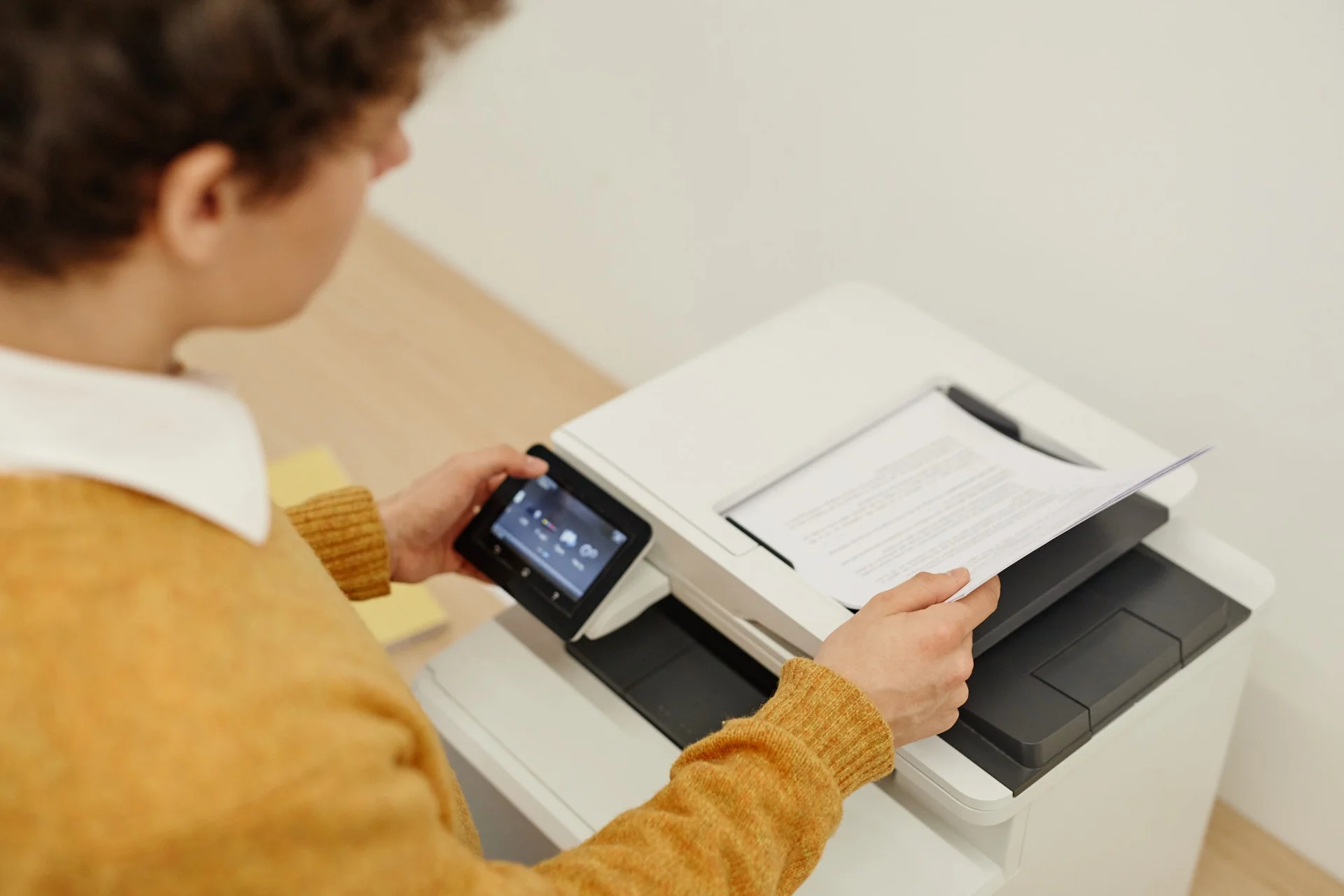
When a photocopier is not working properly, the first step often consists of checking the connections. This includes not only the power cable but also the data cables connecting the device to the computer or network. A poorly connected or damaged cable can cause communication problems, which may prevent the photocopier from receiving print or copy orders.
It is therefore essential to ensure all cables are firmly connected and in good condition. A visual inspection can reveal signs of wear or failure, such as exposed wires or corroded connectors. Furthermore, it is important to check network connections if the photocopier is configured to work on a local network.
This involves ensuring the device is correctly connected to the router or switch, and that IP settings are configured correctly. A simple router restart can sometimes resolve connection problems. Moreover, it may be useful to use another device to test the network connection to determine whether the problem comes from the photocopier or the network itself.
Summary
-
Check connections to ensure they are properly plugged in and working correctly.
-
Restart the photocopier to resolve operating problems.
-
Regularly clean internal parts to avoid print quality problems.
-
Replace empty or defective ink cartridges to maintain print quality.
-
Contact a qualified technician if problems persist despite previous steps.
Restart the Photocopier
Resolving Technical Problems
Restarting a photocopier is a simple but often effective solution for resolving various technical problems. Like any electronic device, a photocopier may encounter temporary bugs that disrupt its normal operation. By turning off the device for a few minutes then turning it back on, you allow its internal system to reinitialise.
Problems Resolved
This process can resolve problems such as print errors, paper jams, or unexplained error messages. It is also advisable to unplug the photocopier from the electrical outlet before restarting. This eliminates any residual charge that could affect device operation.
Checking the Problem
After waiting a few minutes, plug it back in and turn it on to see if the problem persists. In many cases, this simple method may be sufficient to restore photocopier functionality without requiring more complex interventions.
Clean Internal Parts
Regular cleaning of a photocopier’s internal parts is crucial for maintaining optimal performance. Dust, ink residue, and paper particles can accumulate inside the device, causing problems such as blurry prints or paper jams. To perform effective cleaning, it is recommended to follow the manufacturer’s instructions regarding access to internal components.
This may include removing the top cover and accessing feed rollers and drums. Using a soft, lint-free cloth to wipe internal surfaces is good practice. Avoid harsh chemicals that could damage sensitive components.
Moreover, it is wise to use a low-power vacuum cleaner to remove accumulated dust in hard-to-reach areas. Regular cleaning not only extends photocopier lifespan but also improves print quality and reduces breakdown risk.
Replace Ink Cartridges
Ink cartridges are essential elements in photocopier operation, and their regular replacement is necessary to guarantee optimal print quality. When copy quality begins to degrade, such as dull colours or incomplete prints, it is often time to replace cartridges. It is important to choose cartridges compatible with the specific photocopier model to avoid any compatibility problems.
Before replacing a cartridge, it is advisable to consult the user manual to know the appropriate procedure. This generally includes opening the cartridge compartment and carefully removing the old cartridge. Once the new cartridge is installed, it may be necessary to perform a test print to ensure everything is working correctly.
Moreover, it is wise to keep a stock of cartridges on hand to avoid any interruption in workflow.
Contact a Qualified Technician
If the previous steps have not resolved the photocopier problem, it may be necessary to call a qualified technician. Modern photocopiers are complex machines that may require technical expertise to diagnose and repair more serious problems. An experienced technician will be able to quickly identify the problem source and propose appropriate solutions.
When choosing a technician, it is important to check their qualifications and experience with your specific photocopier model. Many manufacturers offer technical support services and can recommend authorised technicians. Moreover, it may be useful to read online reviews or ask for recommendations from other businesses to ensure you choose a reliable and competent professional.
Check Error Messages
Modern photocopiers are equipped with diagnostic systems that display error messages when something is wrong. These messages can provide valuable clues about the problem’s nature and help guide troubleshooting steps. It is essential to pay attention to these messages and consult the user manual to understand their meaning.
Sometimes, a simple error code can indicate a minor problem that can be resolved quickly. It is also possible that some photocopier models offer the ability to access an error log providing a history of problems encountered by the device. This can be particularly useful for identifying recurring or chronic problems requiring particular attention.
By analysing these messages and following manufacturer recommendations, it becomes easier to effectively resolve technical problems.
Perform a Reset
Resetting a photocopier can be an effective solution for resolving various persistent technical problems. This operation consists of restoring the device to its factory settings, which can eliminate software bugs or incorrect configurations affecting its operation. Before performing a reset, it is crucial to save all customised configurations or important data, as this operation will erase all information stored in the device.
To perform a reset, you generally need to access the photocopier’s main menu and navigate to system settings or the reset option. Exact steps may vary depending on the model, so referring to the user manual is essential to avoid any errors. Once the reset is performed, it is recommended to reconfigure the device according to your specific needs and test its functionalities to ensure it is working correctly.
Check Configuration Settings
Configuration settings play a crucial role in proper photocopier operation. Incorrect settings can cause various problems, ranging from print errors to network connection difficulties. It is therefore important to regularly check these settings to ensure they match your work environment’s specific needs.
This includes checking network settings, such as IP address and DNS settings, as well as those related to print quality and paper formats. To access configuration settings, you generally need to navigate in the photocopier’s main menu. Once in this section, carefully examine each setting and compare it with manufacturer recommendations or those previously used in your company. **
If modifications have been made without adequate documentation, this could explain certain malfunctions.** When in doubt about certain settings, it may be useful to consult the manual or even a qualified technician for advice on the best configuration to adopt for your specific device.
Need a Professional Photocopier?
Get free personalised quotes from qualified suppliers in Belgium. Response within 24 hours, no obligation.