Identify and Apply Common Preventive Maintenance Techniques for Printers
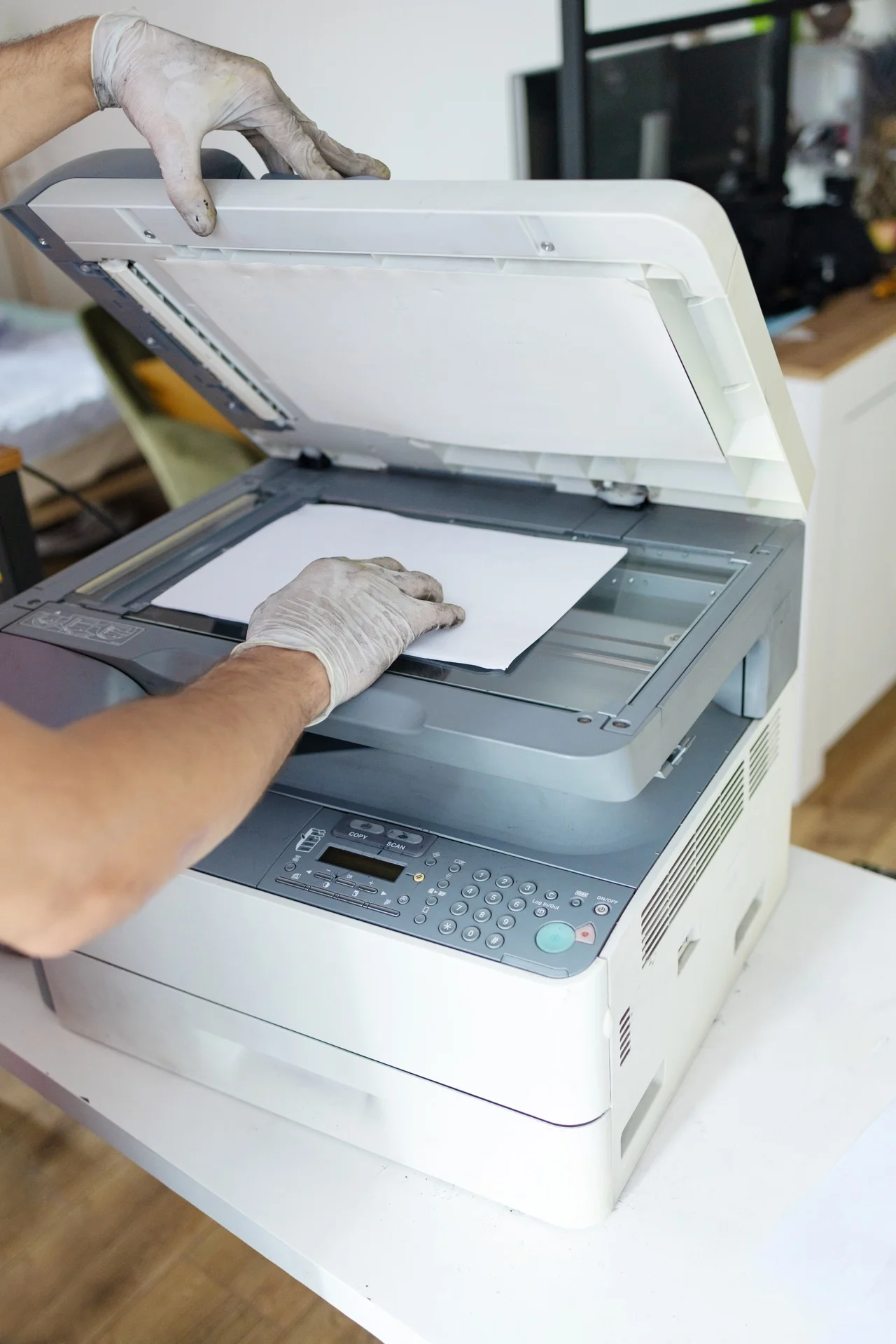
Preventive maintenance is the key to reliable printer operation and extended equipment life. By implementing regular maintenance routines, you can avoid unexpected breakdowns, maintain print quality, and reduce long-term costs. This guide covers the essential techniques for keeping your professional printers in optimal condition.
Why Preventive Maintenance Matters
Benefits of Regular Maintenance
- Reduced downtime – Prevent breakdowns before they happen
- Consistent quality – Maintain professional print output
- Extended lifespan – Protect your investment
- Lower costs – Avoid expensive emergency repairs
- Better reliability – Confidence in your equipment
The Cost of Neglect
Without maintenance, you risk:
- Unexpected failures at critical moments
- Degraded print quality
- Shortened equipment life
- Higher repair costs
- Lost productivity
Daily Maintenance Tasks
Visual Inspection
Each day, briefly check:
- Paper supply levels
- Toner/ink levels
- Output tray clear of paper
- No warning lights or error messages
- General cleanliness
Paper Management
- Use quality paper appropriate for the machine
- Fan paper before loading
- Don’t overfill trays
- Store paper properly (cool, dry environment)
- Remove and replace old paper periodically
Clear the Output Area
- Remove printed documents promptly
- Don’t let paper accumulate
- Keep output trays clear
Weekly Maintenance Tasks
Exterior Cleaning
Clean external surfaces:
- Use a soft, lint-free cloth
- Slightly dampen with water if needed
- Avoid harsh chemicals
- Clean control panel and buttons
- Wipe paper guides in trays
Document Glass Cleaning
For devices with scanning:
- Use glass cleaner and soft cloth
- Clean both platen glass and ADF glass
- Check for and remove any debris
- Ensure no streaks remain
Check for Paper Debris
- Open accessible areas
- Look for torn paper fragments
- Remove any debris found
- Check rollers for paper dust
Monthly Maintenance Tasks
Interior Cleaning
More thorough internal cleaning:
- Follow manufacturer instructions
- Clean inside paper path
- Remove dust accumulation
- Check and clean registration area
Roller Inspection
Examine feed and transport rollers:
- Look for wear or glazing
- Check for debris buildup
- Note any cracking or damage
- Report concerns to service provider
Ventilation Check
Ensure proper airflow:
- Check vents aren’t blocked
- Clean dust from vents if needed
- Ensure adequate space around machine
- Verify room temperature is appropriate
Print Quality Test
Print test pages to check:
- Text sharpness
- Colour accuracy (colour devices)
- Consistent density
- No streaks, spots, or banding
- Proper registration
Quarterly Maintenance Tasks
Deep Cleaning
More intensive cleaning:
- Clean inside all accessible areas
- Use manufacturer-approved cleaning supplies
- Address any buildup or contamination
Calibration Check
Verify device calibration:
- Run calibration routines
- Check colour accuracy
- Verify print alignment
- Address any issues found
Firmware/Software Updates
Keep software current:
- Check for available updates
- Schedule updates during low-use periods
- Test after updating
- Document changes made
Usage Review
Analyse usage patterns:
- Review page counts
- Identify any unusual patterns
- Plan for supply needs
- Assess if equipment is appropriately sized
Consumables Management
Toner/Ink Handling
- Store in original packaging until use
- Keep in cool, dry environment
- Rotate stock (use oldest first)
- Don’t stockpile excessive quantities
- Use genuine or quality-approved products
Drum and Developer Care
- Handle carefully when replacing
- Avoid exposure to light
- Follow installation instructions precisely
- Track page counts for replacement timing
Waste Toner
- Replace waste containers when indicated
- Don’t overfill
- Dispose of properly
- Keep spare containers available
Environmental Considerations
Optimal Operating Environment
Maintain appropriate conditions:
- Temperature: 20-25°C (68-77°F)
- Humidity: 40-60%
- Avoid direct sunlight
- Keep away from dust sources
- Ensure adequate ventilation
Location Factors
Position equipment properly:
- Level surface
- Away from heat sources
- Not in high-traffic areas
- Accessible for maintenance
- Near network connection
When to Call for Professional Service
Signs Requiring Expert Attention
Contact your service provider if you notice:
- Persistent error codes
- Unusual noises (grinding, clicking)
- Consistent quality problems
- Paper jams that keep recurring
- Burning smell or overheating
Service Intervals
Professional maintenance should include:
- Component inspection and replacement
- Thorough internal cleaning
- Calibration and adjustment
- Firmware updates
- Performance testing
Creating a Maintenance Schedule
Template Maintenance Calendar
| Task | Frequency | Responsible |
|---|---|---|
| Visual check | Daily | Any user |
| Paper management | Daily | Any user |
| Exterior cleaning | Weekly | Designated staff |
| Glass cleaning | Weekly | Designated staff |
| Interior cleaning | Monthly | Trained staff |
| Print quality test | Monthly | Administrator |
| Deep cleaning | Quarterly | Service tech |
| Calibration | Quarterly | Service tech |
Documentation
Keep records of:
- Maintenance performed
- Issues found and resolved
- Supplies replaced
- Service calls made
- Page counts and trends
Conclusion
Preventive maintenance is an investment that pays dividends through improved reliability, consistent quality, and extended equipment life. By establishing regular maintenance routines and addressing issues promptly, you ensure your professional printers remain productive assets.
For businesses without dedicated maintenance resources, professional maintenance contracts provide peace of mind and expert care, allowing you to focus on your core business activities.
Need a Professional Photocopier?
Get free personalised quotes from qualified suppliers in Belgium. Response within 24 hours, no obligation.