Essential Tips for Printer Maintenance
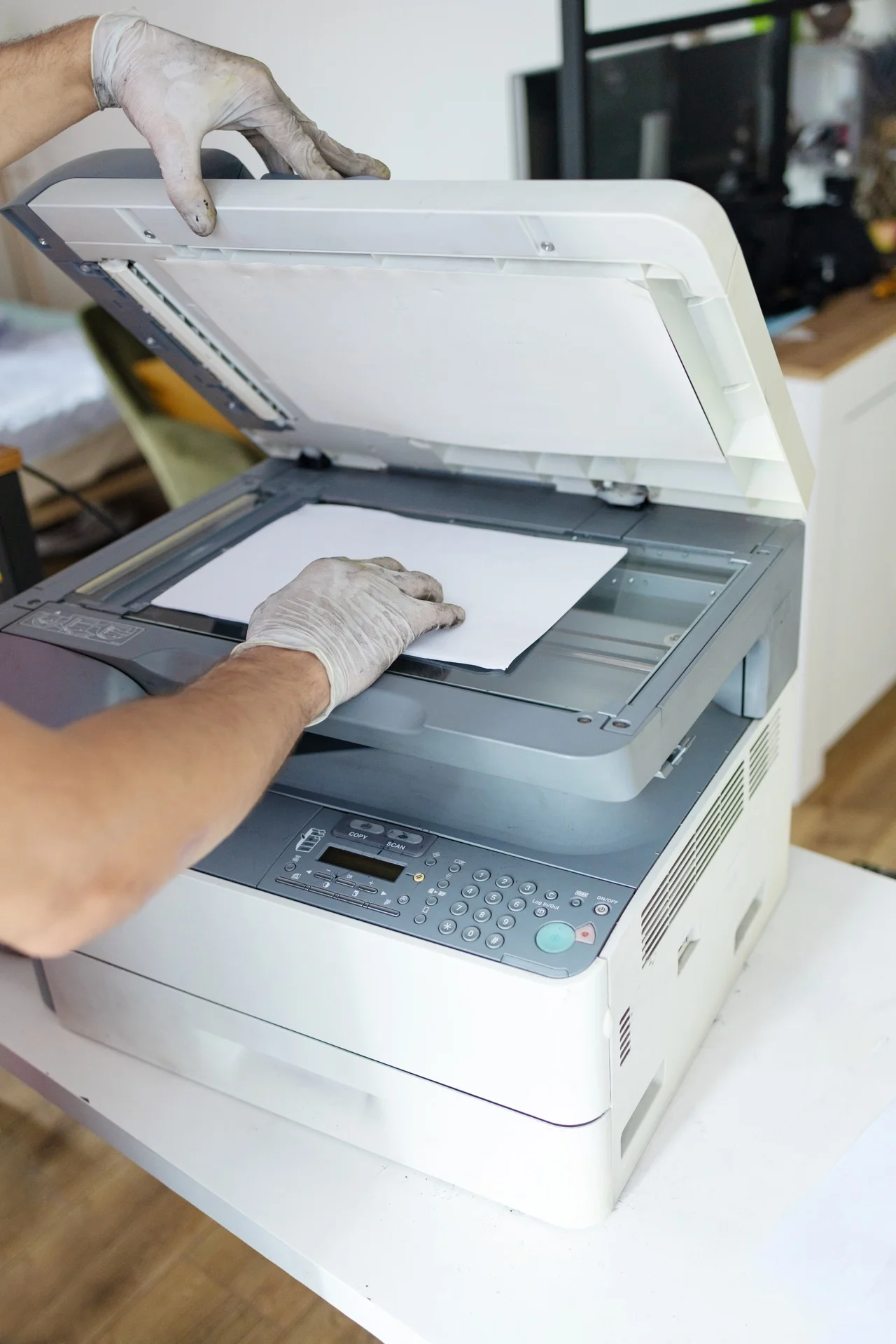
Regular maintenance keeps your professional printer running smoothly and extends its lifespan. Whether you have a small office printer or a large multifunction device, these maintenance tips will help ensure reliable operation.
Why maintenance matters
The cost of neglect
| Problem | Cause | Cost |
|---|---|---|
| Frequent jams | Dirty rollers | Lost time, frustration |
| Poor print quality | Worn parts | Reprints, wasted supplies |
| Unexpected breakdown | No preventive care | Emergency repair fees |
| Shortened lifespan | Cumulative neglect | Early replacement |
Benefits of regular maintenance
- Consistent print quality
- Fewer paper jams
- Longer equipment life
- Lower total cost of ownership
- Less downtime
Daily maintenance tasks
Quick checks (30 seconds)
Every day, verify:
- Paper supply: Enough for the day?
- Toner level: Not critical low?
- Output tray: Clear of old prints?
- Error messages: Any warnings?
Paper handling
Best practices:
- Don’t overfill trays (respect max line)
- Fan paper before loading (separates sheets)
- Align stack properly (prevents skewing)
- Use appropriate paper (right weight and type)
Weekly maintenance tasks
Exterior cleaning
What you need:
- Soft, lint-free cloth
- Mild cleaning solution (or damp cloth)
- Cotton swabs for details
Steps:
- Turn off and unplug (let cool if laser)
- Wipe exterior surfaces
- Clean control panel (be gentle)
- Remove dust around vents
- Check for obstructions
Scanner glass (for MFPs)
The scanner glass gets dirty and affects scan quality:
- Open scanner lid
- Spray cleaner on cloth (not directly on glass)
- Wipe glass gently
- Dry with clean cloth
- Check for streaks (re-clean if needed)
Also clean:
- ADF glass strip (narrow glass for feeder)
- White reference strip (if visible)
Paper path inspection
Check for:
- Debris in paper path
- Torn paper pieces
- Dust accumulation
- Obstructions near rollers
Clean with:
- Dry lint-free cloth
- Compressed air (short bursts)
Monthly maintenance tasks
Deep cleaning
Inside cleaning (if accessible):
- Power off and unplug
- Open all access panels
- Carefully vacuum dust (avoid touching parts)
- Wipe accessible areas with dry cloth
- Check for and remove any debris
Caution: Don’t touch the drum, fuser, or any components you don’t recognise.
Run printer cleaning cycle
Most printers have built-in cleaning:
Access via:
- Printer menu → Maintenance → Cleaning
- Or from driver → Printer Properties → Maintenance
Types of cleaning:
- Print head cleaning (inkjet)
- Drum cleaning
- Fuser cleaning (some models)
- Calibration
Check consumable levels
Record status of:
- Toner/ink levels
- Drum life remaining
- Maintenance kit counter
- Other wear items
Plan ahead: Order before running out
Inspect paper quality
Check your paper:
- Is it stored properly (dry, flat)?
- Any curling or humidity damage?
- Correct weight for your needs?
- Is supply adequate?
Quarterly maintenance tasks
Roller inspection
Pickup rollers:
- Should be slightly tacky
- Not shiny or hardened
- Free of debris
Cleaning method:
- Locate pickup roller (usually accessible from paper tray)
- Dampen lint-free cloth with water
- Rotate roller while wiping
- Let dry before use
Ventilation check
Ensure:
- Vents not blocked
- Adequate airflow around machine
- Room temperature appropriate
- No direct heat sources nearby
Firmware updates
Check manufacturer website for updates:
- Note current firmware version
- Check for newer version
- Download if available
- Install during low-usage period
Benefits of updates:
- Bug fixes
- Security patches
- Performance improvements
- New features
Annual maintenance tasks
Professional service
Even with good user maintenance, schedule professional service annually:
What a technician does:
- Internal cleaning
- Part inspection
- Calibration
- Replacement of wear items
- Firmware updates
- Performance testing
If you have a maintenance contract: This is usually included—schedule it!
Full assessment
Evaluate:
- Is equipment meeting needs?
- Any recurring issues?
- Should you upgrade?
- Contract renewal coming?
Maintaining different printer types
Laser printers
Specific needs:
- Toner can be messy—clean carefully
- Fuser gets very hot—let cool before service
- Drum is light-sensitive—minimise exposure
- Vents must stay clear
Inkjet printers
Specific needs:
- Run regularly (prevents head clogging)
- Use manufacturer ink for best results
- Keep heads clean
- Don’t let ink dry out
Multifunction devices
Additional care:
- Clean scanner glass regularly
- Maintain ADF rollers
- Clear document feeder path
- Test all functions periodically
Environmental factors
Temperature
Optimal: 18-25°C (64-77°F)
Problems with extremes:
- Too cold: Toner doesn’t fuse properly
- Too hot: Paper curls, components stress
Humidity
Optimal: 40-60% relative humidity
Problems with extremes:
- Too dry: Static, paper jams
- Too humid: Paper wrinkles, jams, quality issues
Dust
Minimise by:
- Clean room regularly
- Don’t place near open windows
- Keep covers closed when not in use
- Consider air filtration in dusty environments
Recognising problems early
Print quality warnings
| Symptom | Possible cause |
|---|---|
| Faded prints | Low toner, worn drum |
| Lines/streaks | Dirty roller, scratched drum |
| Spots | Debris on drum or roller |
| Smearing | Fuser issue, wrong paper |
| Ghosting | Worn drum or fuser |
Mechanical warnings
| Symptom | Possible cause |
|---|---|
| Increased jams | Worn rollers, dirty path |
| Strange noises | Wear, debris, alignment |
| Slow operation | Memory, processing, wear |
| Frequent errors | Component failure approaching |
When to call for help
User-fixable issues
- Paper jams (following procedure)
- Toner replacement
- Basic cleaning
- Standard error clearance
Technician-needed issues
- Recurring jams (same location)
- Part replacement
- Internal component access
- Persistent error codes
- Quality issues after cleaning
Maintenance schedule summary
| Frequency | Tasks |
|---|---|
| Daily | Check supplies, clear outputs |
| Weekly | Clean exterior, scanner glass |
| Monthly | Clean inside, run cleaning cycle, check consumables |
| Quarterly | Inspect rollers, check vents, firmware |
| Annually | Professional service, full assessment |
Checklist to post near your printer
PRINTER MAINTENANCE CHECKLIST

□ Daily: Check paper and toner
□ Weekly: Clean exterior and glass
□ Monthly: Run cleaning cycle
□ As needed: Clear jams carefully
□ On alert: Don't ignore warnings!

For help: [Your IT/supplier contact]
Need professional printer maintenance?
Get free personalised quotes from qualified suppliers in Belgium. Response within 24h, no obligation.