Understanding Photocopier Components for Optimal Use
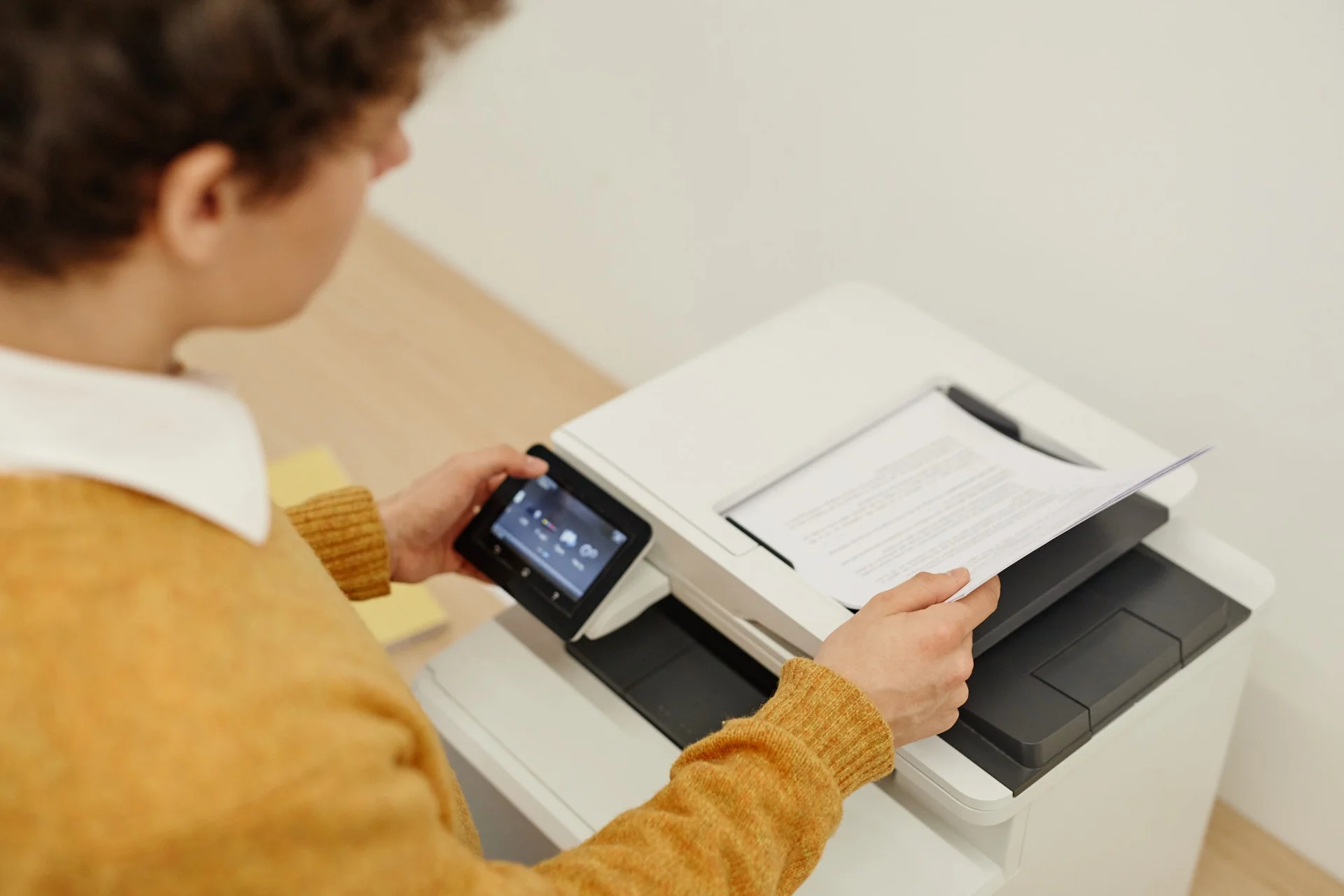
Understanding how a photocopier works helps you use it more effectively, identify problems early, and communicate better with service technicians. This guide explains the key components of modern photocopiers and how they work together to produce copies and prints.
The Core Components
Imaging Drum (Photoconductor)
The heart of any photocopier:
Function:
- Receives the image to be copied
- Transfers that image to paper
- Rotates continuously during operation
How it works:
- Drum is charged with static electricity
- Light (from scanning) creates the image on the drum
- Toner adheres to charged areas
- Image transfers to paper
Maintenance:
- Drums wear out over time (usually 50,000-200,000 pages)
- Keep clean and scratch-free
- Replace when print quality degrades
Toner Cartridge
The “ink” of laser printing:
Types:
- Mono cartridge – Black toner only
- Colour cartridges – Cyan, Magenta, Yellow, Black (CMYK)
Contents:
- Fine powder (plastic and pigment)
- Carrier particles (in some systems)
Quality considerations:
- Use quality toner to protect the drum
- Store properly (cool, dry, away from light)
- Genuine vs. compatible: balance cost and quality
Fuser Unit
Makes the image permanent:
Function:
- Heat and pressure fuse toner to paper
- Operates at high temperatures (150-200°C)
Components:
- Heat roller
- Pressure roller
- Temperature sensors
Maintenance:
- Replace periodically (often 100,000+ pages)
- Signs of wear: smudging, curling, fuser errors
Developer Unit
Prepares toner for transfer:
Function:
- Carries toner to the drum
- Controls toner application
Components:
- Developer roller
- Magnetic core (in some systems)
- Doctor blade
Paper Handling Components
Paper Trays
Storage and feeding:
Features to understand:
- Capacity (sheets per tray)
- Paper sizes supported
- Paper weight range
- Adjustment mechanisms
Common issues:
- Misaligned guides cause jams
- Overfilling causes feeding problems
- Mixed paper types cause inconsistency
Paper Feed Mechanism
Moves paper through the machine:
Components:
- Pick-up rollers
- Feed rollers
- Separation pads
Maintenance:
- Rollers wear smooth and slip
- Regular cleaning improves reliability
- Replace when feeding becomes unreliable
Paper Path
The route paper takes:
Elements:
- Registration rollers (align paper)
- Transport belts
- Guides and sensors
Understanding paper paths helps:
- Locate jams more easily
- Understand multiplex (duplex) printing
- Identify problem areas
Output Trays
Where finished documents land:
Options:
- Face-up output (for inspection)
- Face-down output (keeps pages in order)
- Stacking trays (high capacity)
- Sorting bins
Scanning Components
Document Glass (Platen)
For flatbed scanning:
Care:
- Keep clean for quality scans
- Avoid scratches
- Close lid gently
Automatic Document Feeder (ADF)
For multi-page scanning:
Types:
- Single-pass duplex (scans both sides at once)
- Reversing ADF (flips pages to scan second side)
Capacity:
- Varies by model (20-250+ sheets)
Features:
- Ultrasonic double-feed detection
- Mixed-size handling
Scanner Sensor
Captures the image:
Technologies:
- CCD (Charge-Coupled Device) – Higher quality
- CIS (Contact Image Sensor) – Compact, efficient
Resolution:
- Optical resolution (actual sensor capability)
- Enhanced resolution (software interpolation)
Electronic Components
Controller Board
The brain of the machine:
Functions:
- Processes print jobs
- Manages network connections
- Controls all mechanical operations
- Stores settings and configurations
Memory (RAM)
Temporary storage:
Purposes:
- Buffers incoming print jobs
- Processes complex documents
- Enables secure print features
Why it matters:
- More memory = faster processing
- Important for large/complex documents
Hard Drive
Permanent storage:
Uses:
- Job storage for reprint
- Secure print queues
- Scan storage
- User settings and address books
Security considerations:
- Contains copies of printed documents
- Encryption important for security
- Secure wipe on equipment disposal
Network Interface
Connectivity:
Options:
- Ethernet (wired)
- Wi-Fi (wireless)
- USB (direct connection)
Features:
- Network printing protocols
- Security features
- Remote management
Control Panel
User interface:
Elements:
- Display screen (increasingly touchscreen)
- Physical buttons
- Status indicators
Functions:
- Job configuration
- Status monitoring
- Error messages
- Administrative settings
Understanding Error Codes
Most photocopiers display error codes:
Common categories:
- Paper jams – Usually location-specific codes
- Supply low/empty – Toner, paper, waste toner
- Service required – Component wear or failure
- Communication errors – Network or connection issues
What to do:
- Note the exact code
- Check user manual for meaning
- Attempt suggested fixes
- Contact service if persistent
Preventive Maintenance
User-Level Maintenance
Regular tasks you should perform:
- Clean document glass weekly
- Check and refill paper regularly
- Replace toner when indicated
- Clear paper jams properly
Professional Maintenance
What technicians handle:
- Drum and developer replacement
- Fuser unit service/replacement
- Roller replacement
- Calibration and adjustment
- Firmware updates
Consumables Summary
| Component | Typical Life | Signs of Wear |
|---|---|---|
| Toner | 5,000-30,000 pages | Light prints, warnings |
| Drum | 50,000-200,000 pages | Streaks, spots, fading |
| Fuser | 100,000-300,000 pages | Smudging, curling |
| Feed rollers | 100,000+ pages | Misfeeds, jams |
Conclusion
Understanding your photocopier’s components helps you:
- Use the machine more effectively
- Identify and resolve simple issues
- Communicate clearly with service technicians
- Make informed decisions about maintenance and supplies
While modern photocopiers are complex machines, knowing the basics empowers you to get the best performance from your equipment and minimise downtime.
Need a Professional Photocopier?
Get free personalised quotes from qualified suppliers in Belgium. Response within 24 hours, no obligation.