How to Install and Use a Copier
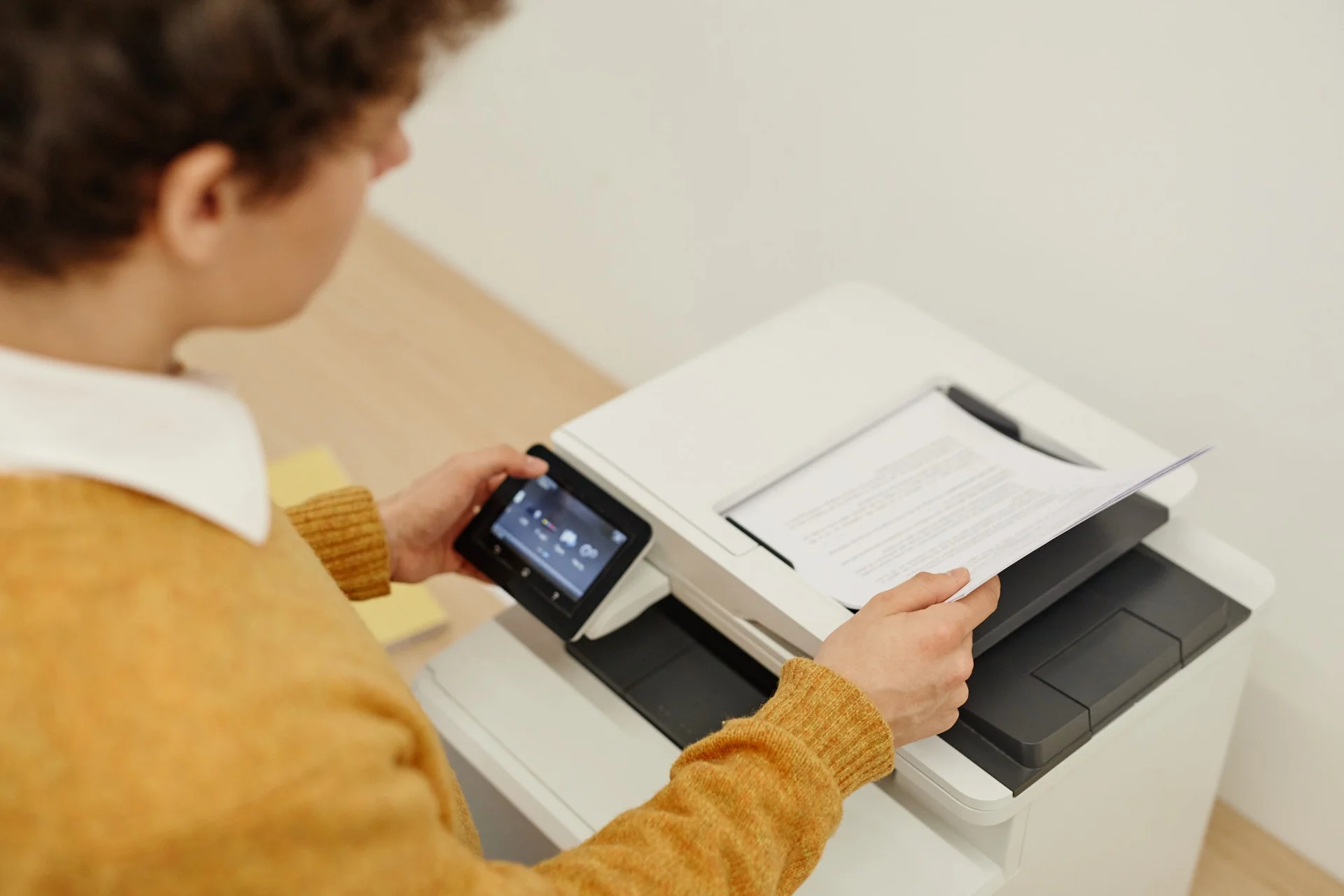
Installing Your Copier
Proper installation of your copier is essential for optimal performance and longevity. This guide covers everything from positioning to first use.
Choosing the Right Location
Space Requirements
- Leave at least 10cm clearance on all sides
- Ensure easy access to all panels
- Allow space for paper tray extension
- Consider cable routing and power access
Environmental Considerations
- Avoid direct sunlight
- Maintain stable temperature (20-25°C)
- Keep humidity between 40-60%
- Ensure good ventilation
- Avoid dusty areas
Practical Considerations
- Central location for easy access
- Near power outlets (avoid extension cords)
- Network access point nearby
- Sufficient lighting for operation
- Away from high-traffic collision zones
Physical Installation
Unpacking
- Keep original packaging for potential returns
- Check for all components against packing list
- Remove all shipping tape and protective materials
- Save documentation and installation guides
Positioning
- Use proper lifting techniques (copiers are heavy)
- Consider using furniture dolly for large units
- Level the machine using adjustable feet
- Lock wheels if equipped
Connecting Power
- Check voltage compatibility (230V in Belgium)
- Use grounded outlet only
- Avoid power strips for large copiers
- Consider UPS for power protection
Network Configuration
Wired Connection
- Connect Ethernet cable to network port
- Obtain IP address from IT or use DHCP
- Configure network settings on control panel
- Test connection with ping test
Wireless Setup
- Access wireless settings on control panel
- Select your network and enter password
- Confirm connection status
- Test with print job from networked computer
Driver Installation
- Download latest drivers from manufacturer
- Install on all user computers
- Configure default settings
- Add printer to print management if applicable
Initial Configuration
Basic Settings
- Date and time
- Language preferences
- Default paper size (A4 for Belgium)
- Energy saving schedules
User Setup
- Administrator password
- User accounts if applicable
- Department codes for tracking
- Security settings
Print Defaults
- Default quality settings
- Double-sided printing default
- Colour vs black and white
- Tray selections
Using Your Copier
Making Copies
Basic Copying
- Place original on glass or in document feeder
- Select number of copies
- Choose single or double-sided
- Adjust quality if needed
- Press Start
Copy Settings
- Zoom: Enlarge or reduce (50-200%)
- Density: Lighter or darker
- Contrast: Adjust for readability
- Paper selection: Choose appropriate tray
- Sorting: Collate or group
Printing
From Computer
- Select Print from application
- Choose correct printer
- Set preferences (quality, duplex, colour)
- Click Print
Mobile Printing
- AirPrint for iOS devices
- Mopria for Android
- Cloud printing services
- Email-to-print functionality
Scanning
Scan to Email
- Place document
- Select Scan to Email
- Enter recipient address
- Choose format (PDF, JPEG)
- Press Start
Scan to Folder
- Configure network folder destination
- Select Scan to Folder on copier
- Choose destination
- Start scan
Maintenance Tasks
Daily
- Check paper levels
- Clear output trays
- Report any issues
Weekly
- Clean glass surface
- Check for debris in paper path
- Review error logs
Monthly
- Clean exterior
- Verify supplies levels
- Update firmware if available
Troubleshooting Basics
Paper Jams
- Follow on-screen instructions
- Remove paper gently in direction of travel
- Check for torn pieces
- Close all covers securely
- Retry print job
Poor Print Quality
- Check toner levels
- Clean glass and imaging components
- Verify paper type settings
- Run calibration routine
Connection Issues
- Verify network cables
- Check IP configuration
- Restart printer and router
- Reinstall drivers if needed
Best Practices
- Keep paper in original packaging until use
- Don’t overfill paper trays
- Log out after secure jobs
- Report issues promptly
- Follow usage guidelines
Need a Professional Copier?
Get free personalised quotes from qualified suppliers in Belgium. Response within 24 hours, no obligation.