Why My Professional Photocopier Won't Print
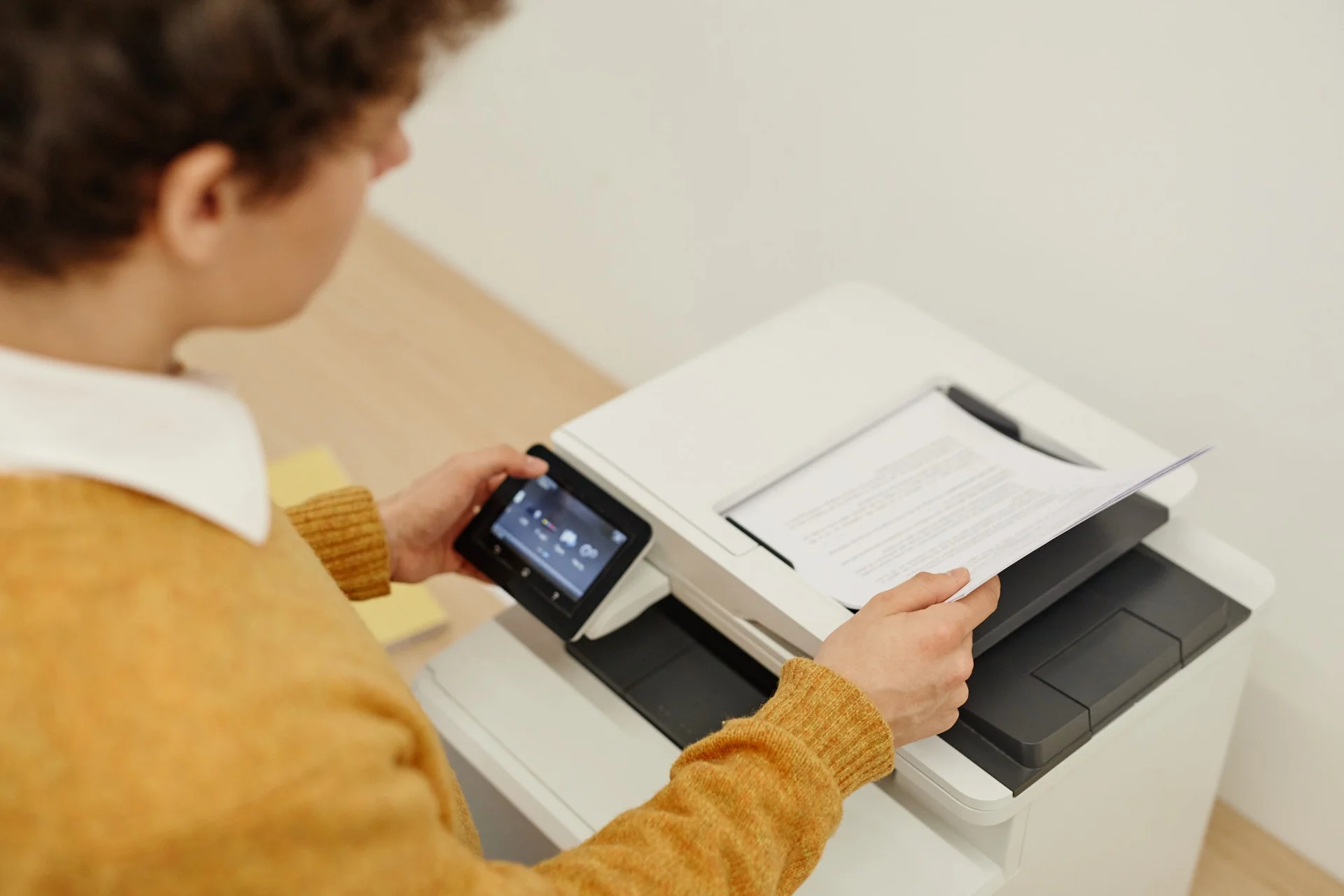
When an office photocopier stops printing, identifying the underlying cause is crucial to resolving the issue. This article explores why your printer might malfunction and how to address it. If your device is leased or under a maintenance contract, first contact your service provider. Need a new office printer? Complete our form for a free, no-obligation quote.
Facing an uncooperative professional photocopier doesn’t require panic—staying calm helps locate solutions faster (easier said than done, we admit!). Whether the issue stems from paper, cartridges, network connections, or USB interfaces, solutions exist. First, check your printer settings to ensure the correct driver is selected and your device is updated. A common mistake: businesses are often just one click away from the “print” button. With patience, revive your machine and ensure every print succeeds.
1. Ink Cartridge or Toner Issues
Your printer’s failure to print might result from ink cartridge or toner problems. Here’s what to check:
- Ensure cartridges or toners are properly installed.
- Verify ink or toner levels. Replace empty cartridges.
- Inspect cartridges for leaks or blockages impeding printing.
If problems persist after these checks, the issue may lie elsewhere.
2. Computer or Network Connection Problems
Connection issues between your printer and computer or network can prevent printing. Troubleshooting steps:
- Check USB cable connections. For wireless printers, confirm network connectivity.
- Restart both printer and computer to re-establish connections.
- Verify printer settings in your operating system. Select the correct printer model and ensure drivers are current.
If unresolved, internal printer malfunctions might be the cause.
3. Mechanical or Hardware Malfunctions
Mechanical issues can disrupt printing. Key areas to examine:
- Paper quality and type—ensure compatibility with your printer.
- Inspect the paper path inside the printer for jams or obstructions.
- Clean print heads and rollers to maintain print quality.
Following these steps should restore printing functionality. If problems continue, professional diagnostics are recommended.
4. Printer Driver Updates and Configuration
Outdated or misconfigured drivers often cause printing problems. Solutions:
- Update drivers from the manufacturer’s website.
- Verify printer configuration in Windows: Open Control Panel > Devices and Printers. Right-click your printer, select Printer Properties, and confirm default printer status under the General tab.
5. Error Message Management
Your photocopier may display error messages identifying issues. Action steps:
- Note all error messages for troubleshooting.
- Consult the printer manual or online resources using the recorded messages for specific solutions.
6. Printer Maintenance Best Practices
Regular maintenance prevents printing issues. Tips:
Keep the Device Clean
Routine cleaning prevents dust buildup affecting performance.
Use Quality Consumables
Opt for genuine ink cartridges, toner, and compatible paper to ensure optimal operation.
Restoring a Fully Functional Photocopier
Summarily, multiple factors can hinder professional photocopier printing. By systematically addressing potential causes—cartridge issues, connectivity problems, mechanical faults—you can restore functionality. Persistent issues warrant professional servicing for thorough diagnostics and repairs.
Need a Professional Photocopier?
Get personalised quotes from qualified suppliers in Belgium. Response within 24 hours, no obligation.